


YOUR doo EVENT WEBSITE
Create and manage event website
Welcome to the training page. Below you will find an overview of all functions and how to use the system.
The most important steps:
- How do I create a new event website?
- How do I use the website editor?
- How do I build an event website?
- How do I add and delete elements?
- How do I integrate the booking widget into my event page?
Event Website
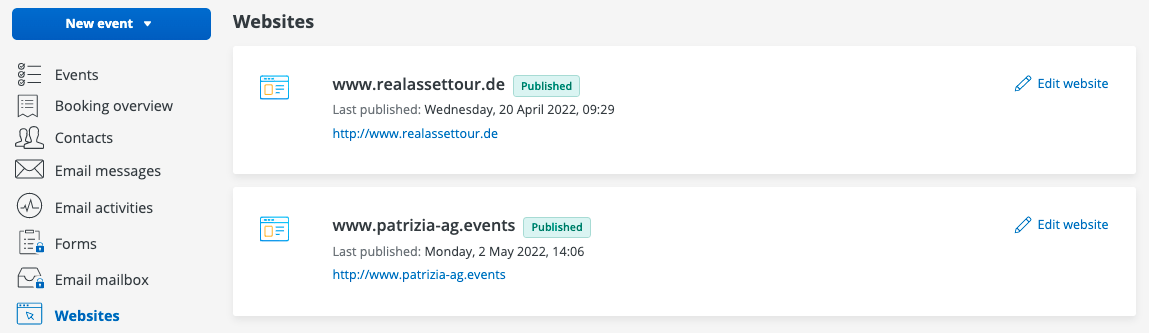
In the menu, click on "Websites".
You see an overview of all websites that are assigned to your account. Select www.patrizia-ag.events and click on "Edit website".
The website editor
The editor can be accessed in the left menu under "Website" and will then open in a new tab in your browser. The editor includes two navigation areas that you can use to design your website individually and independently.
Structure and navigation in the editor
Titelleiste

The title bar is used for navigation. You can use the dropdown to switch quickly and easily between the created subpages of your website.
You can also check how a created page is displayed on different devices by clicking on the corresponding symbols.
In the title bar you will also find the controls to, for example, undo editing steps, save work steps or view the preview of the current version of your website.
The editor automatically saves changes to your pages on an ongoing basis - so you don't need to save them manually. If you want to transfer the changes made in the editor to your website, confirm this by clicking on "Publish".
menu

On the left you will find the "Menu" that shows you all the available elements and functions for editing the page content.
Under "Design" you can create and change the basic design of your site. The global format set here (e.g. font or size) is automatically overwritten for the individual elements. Of course, the format can be changed later in the individual elements.
Using the "Pages" tab, you can add and edit new subpages to your website and create pop-up windows.
Under "Elements", new elements (columns, text fields, images, icons, etc.) and functions can be integrated into your pages at any time using drag & drop.
Under the "Content" tab, you will find the content library, where you can import content yourself. Here you can upload images and videos for later use or find complete text passages on the page and replace them with others.
The "Personalize" tab offers the possibility to personalize the website for the visitor. Once the appropriate conditions you select are met, the desired action is taken. For example, it is possible for visitors who access your site through a link from an email campaign to be shown different things than someone who visits the site regularly.
Under the "Blog" menu item, you have the option of creating a blog to provide visitors to your website with up-to-date information.
Various administrative changes can be made to your website under "Settings". For example, an SSL certificate can be created here, SEO optimization can be carried out and Google Analytics activated.
Creation of an individual website
Each page consists of sections that form the basic structure of a page. The sections are made up of one or more rows and columns, into which elements such as image placeholders or text fields can then be inserted. You can then fill the created elements with content such as image files, texts, etc.
The first line of each page is always the header (header) and the last line is the footer (footer). You can insert as many sections or lines as you like between the header and footer.
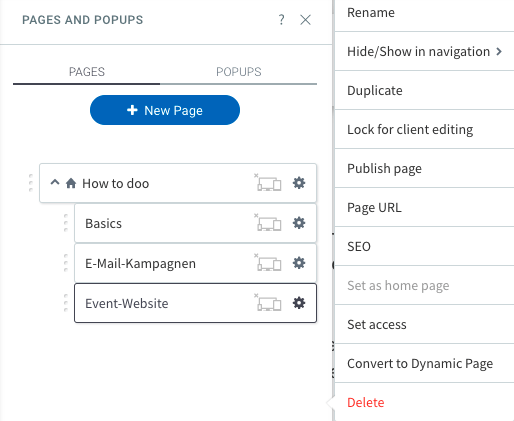
To create or delete a new subpage for your website, go to "Pages" in the left menu.
Here you can view all existing subpages and create new ones. You can also use the gear icon to rename, duplicate or delete existing pages. Using the 3-dot icon in front of each page name, you can drag and drop the order of the pages. It is also possible to subordinate pages to other pages.
Page layout: Create and edit sections and lines
With the doo page templates, you can individually design and change entire rows as well as individual elements, add new ones or delete them.
To do this, move the mouse over the line that you want to edit or over which you want to insert the new section or line. A "Line" button appears on the left that you can click.
The editing window then opens, in which you can make changes for the selected line.
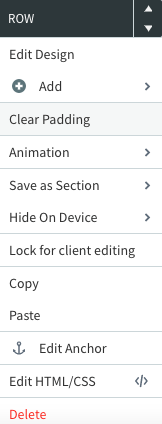
To move the row up or down the page, click the appropriate arrow icon at the top of the editing window. To remove the row, click "Delete" at the bottom of the selection. The editing window also gives you the option of, for example, adjusting the design or selecting animations (eg: elements fade in slowly or appear from a selected direction).
To add new rows, sections, columns or inner rows, go to " Add" and select the one you want.
If you choose "Section", you can choose from a variety of different topic-specific sample sections. For example, you can use section templates to integrate logos or image galleries. Confirm the selection at the top in the menu bar by clicking on "Save".
Insert and delete items
As already described, the elements act as placeholders for your content. In order to fill your page with content such as images or text, the element must first be positioned on the page.
If the element has already been created, for example as part of our template or a newly inserted section, you only need to click on it and you can then adapt the content and the design of the element.
To add an element to your page, click "Elements" in the left menu, select the element you want and drag and drop it to the desired location on the page. In order for the element to be inserted at the desired position, note the information in the blue insertion mask before releasing it. With "Insert here", the element is inserted into the existing row or column, with "Insert in new row or column" it is created in a new row or column and the content editor is opened immediately.
To delete items, select them and click the red "X".
Fill elements with content
If you click on an existing element in the editor, the content editor opens and you can fill the element with the desired content.
For text elements, the content editor offers you a variety of formatting options to change the font or the size of a text.

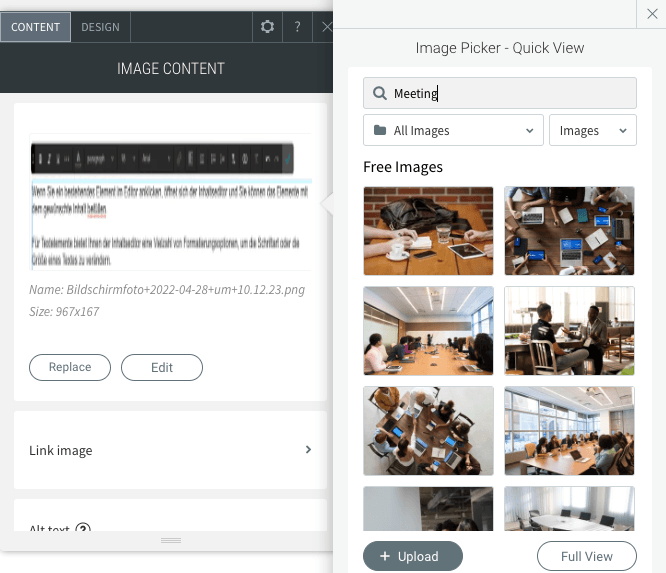
For images, you can either upload your own files or access license-free images that the editor makes available free of charge. We recommend loading the images into your editor in the size in which they are to be displayed on the website in order to avoid unnecessarily long page loading times - for example, the images in a slide show should not be wider than 1600 pixels.
Changes to the design of the element can be made at any time in the "Design" tab.
Integration of the doo booking mask into your website
In order to integrate a doo booking mask into your website, the first step is to create the desired doo widget in the doo Event Manager. You can find instructions on how to do this here.
After successfully creating your widget and copying the widget code, select the "HTML" field under the "Elements" tab in the left menu and drag it to the desired position on your page.
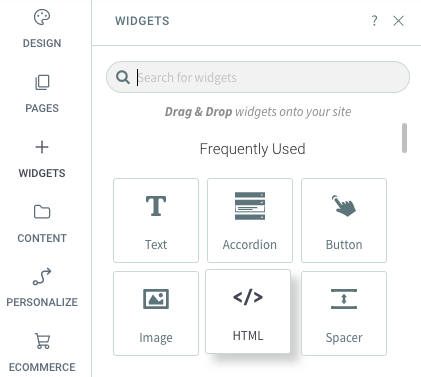
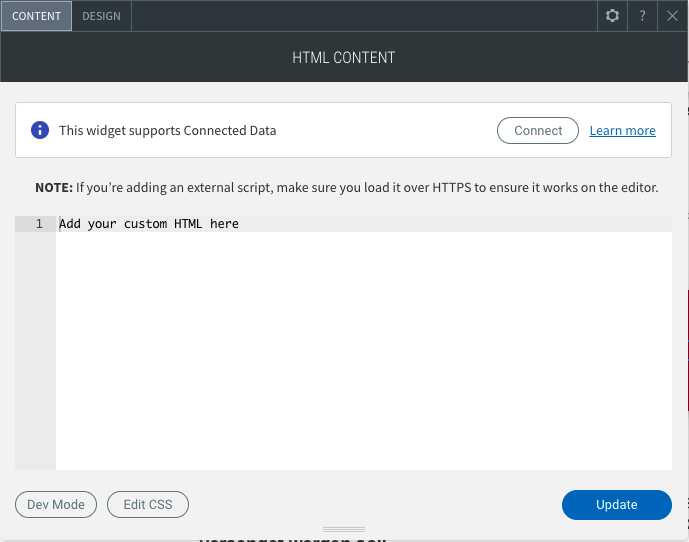
As soon as you release the mouse button at the desired position, a window opens in which you can paste the widget code. Confirm the integration of the doo widget by clicking on "Update".
Please note that as the owner of the website, you are responsible for its content and compliance with legal regulations. Therefore, please check that your site meets all legal requirements regarding data protection, imprint and copyright of the content.


